Installation
1. Install from the marketplace
Section titled “1. Install from the marketplace”Install Trading Cards from the HubSpot App Marketplace. You’ll be prompted to authorise the app for your portal.
2. Generate a Personal Access Key
Section titled “2. Generate a Personal Access Key”Trading Cards uses your HubSpot Personal Access Key to deploy templates into your portal via the HubSpot CLI. This key authenticates the CLI as you, so templates are deployed under your account’s permissions.
To generate one:
- In HubSpot, navigate to Development → Keys → Personal Access Key
- Click Generate personal access key
- Select the scopes required for the templates you want to use
- Copy the generated key
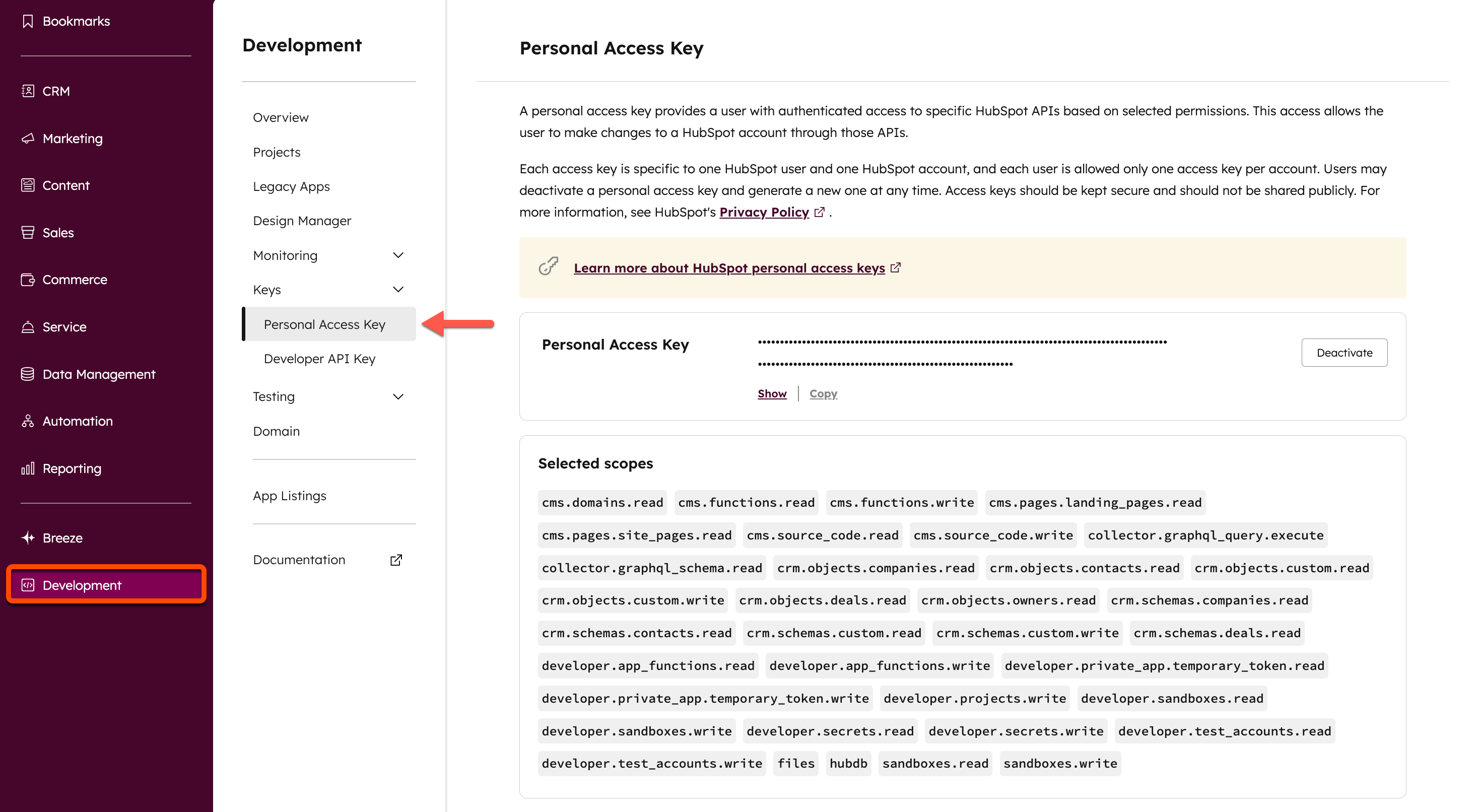
Note: Your Personal Access Key is tied to your HubSpot user permissions. You must have Developer tools access in your portal to deploy projects. Each account can only have one active key at a time — generating a new one deactivates the previous one.
3. Save your key in the app
Section titled “3. Save your key in the app”- Open Trading Cards from the HubSpot top nav
- Go to the Settings tab
- Paste your Personal Access Key and click Save Key
Your key is stored securely and used only to deploy templates into your portal.
4. Deploy a template
Section titled “4. Deploy a template”- Go to the App Templates tab
- Find a template and click Deploy
- Wait ~20 seconds for the deployment to complete
The template will appear as a new card on the relevant CRM records in your portal.